How to turn old photos into film prints
Most of us have years of phone photos that all look the same. Developing a few of them on film can make an old trip or a birthday feel new again. Here's how to do it in DisCam, and which photos work best.
By the DisCam team ·

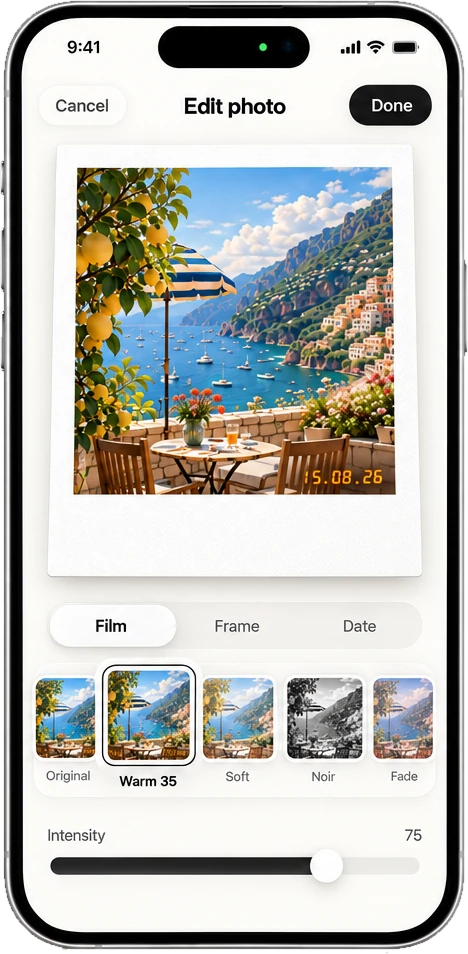
Original
Warm 35
Fade
Noir
Import the photos
With DisCam Pro, import photos from your library and DisCam develops each one on film. It only sees the photos you pick, not the rest of your library. You can also import straight into a new stack, which is handy for an old trip.
Turn on Keep originals if you want to keep the untouched photo too. It uses more space, but lets you change a print's film later.
Pick the film
Choose a film for the photos, then fine-tune each print. A few that work well on older photos:
- Fade, for photos you want to feel like a print from a shoebox.
- Warm 35, for people and everyday moments.
- Noir or Mono 400, to rescue photos with messy colour or mixed lighting.
- Golden, to warm up summer photos taken in dull light.
Frame and date
Give each print a white, cream or black frame, and add the date stamp in the colour, style and corner you like. When you save or share, keep the full frame, crop it to an even border, or share the photo alone.
Full-frame prints also have room for a caption in the bottom margin: up to two lines, in five fonts and any colour.
Which photos work best
- People and candid moments, rather than screenshots or documents.
- Photos that aren't heavily edited already. Strong filters and portrait-mode blur don't mix well with a film look.
- Well-exposed photos. Film recipes add contrast, so very dark photos can lose detail.
- Sets from one day or trip, developed on the same film, so they look like one roll.
Share them
Put the prints into a stack, then share up to 12 of them as one collage, or pick several and share them together. Nothing leaves your phone until you do.